Every video model
ByteDance Seedance, Kling, Google Veo, OpenAI Sora, MiniMax Hailuo and H3, Luma Ray, FLUX.3 video and more — chosen per shot, added as they launch.
The Video Studio generates and transforms video with every leading model behind one prompt — Seedance, Kling, Veo, Sora, MiniMax Hailuo, Luma and more. Six workflows cover the whole job: text-to-video, image-to-video with first and last frames, reference-to-video, video-to-video restyling and extension, lipsync, and 4× upscale.
6 WORKFLOWS · 16:9 / 9:16 / 1:1 · 5–20 S · UP TO 4K
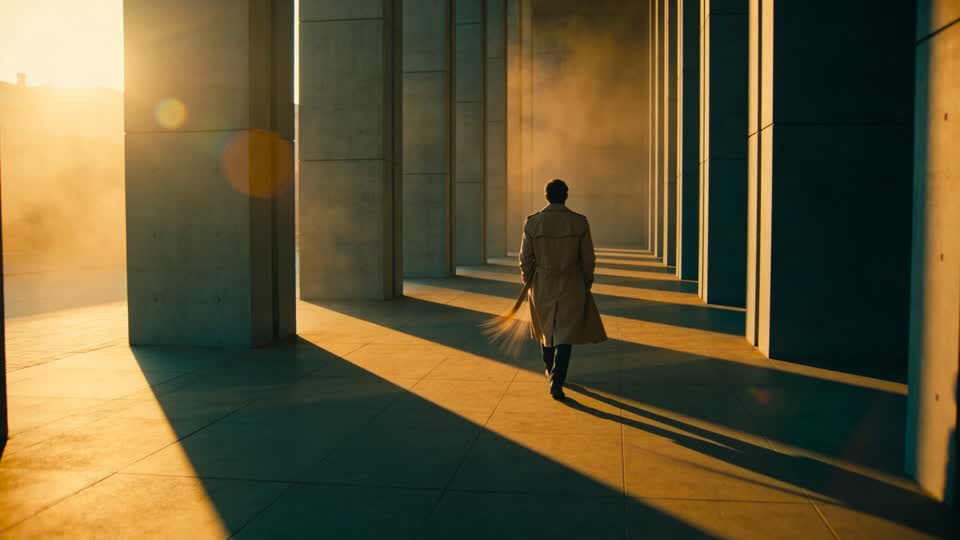
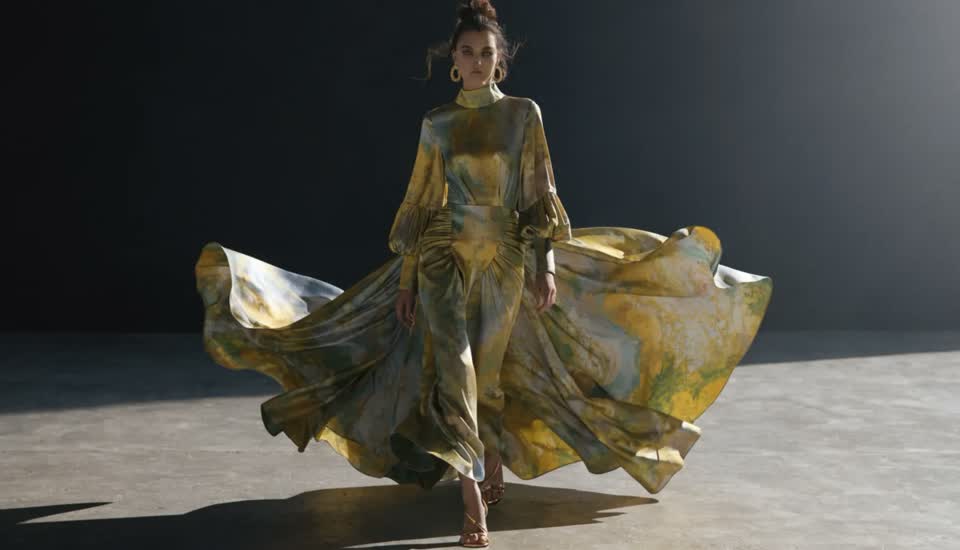
ByteDance Seedance, Kling, Google Veo, OpenAI Sora, MiniMax Hailuo and H3, Luma Ray, FLUX.3 video and more — chosen per shot, added as they launch.
Text to Video, Image to Video (first + last frame), Reference to Video, Video to Video (restyle or extend), Lipsync and Upscale — one rail, one feed.
Start from a still, pin the last frame, or hand the model a subject reference so the same person or product holds through the clip.
Attach a saved Character to text-, image- or reference-to-video and their description rides in the prompt.
Send any clip to Lipsync, Video to Video or Upscale from its tile; cut and caption it in the Video Editor.
Credits scale with duration and resolution; the exact estimate shows before you generate, and failed renders are refunded.
Text to Video for a prompt alone; Image to Video to animate a still (upload a first frame, optionally a last); Reference to Video to keep a subject; Video to Video to restyle or extend a clip.
Prompt (up to 4,000 characters), aspect ratio (16:9, 9:16, 1:1), duration (5–20 s depending on the model) and the model. Attach a Character if you want them in it.
The clip lands in your feed. Lip-sync it to a script, upscale it 2× or 4×, or send it to the Video Editor to cut, caption and export.
An AI video generator turns a text prompt, a still image or a reference into a short clip — typically 5 to 20 seconds — by predicting motion, camera and lighting frame by frame. The models differ: Seedance leads on native audio and multi-shot scenes, Kling on native 4K and controllable motion, Veo on cinematic colour and sound, Sora on narrative and physics, MiniMax H3 on holding a reference subject. The Video Studio puts them all behind one prompt so you choose per shot rather than per subscription.
The workflows map to how video is actually made. Text to Video for a clip from nothing; Image to Video to animate a still you already like, with an optional last frame for controlled motion; Reference to Video to keep a person or product consistent; Video to Video to restyle existing footage or extend a clip that ends too soon. Lipsync and Upscale finish the job, and the Video Editor assembles it.
Because it's one workspace, an image from the Image Studio becomes a first frame in one click, a saved Character can star in the clip, and a voiceover from the Audio Studio can be synced onto it — no exporting between apps.
Vertical 9:16 clips for Reels, TikTok and Shorts in minutes.
Turn a packshot or a generated hero image into motion with Image to Video.
Reference to Video keeps the same person across a series of clips.
Give existing footage a new look or a new setting with Video to Video.
Continue a shot past its last frame when it ends too early.
Lip-sync a new script, upscale to 4K, cut it in the editor.
Seedance 2.x, Kling (including 4K and motion-control variants), Google Veo 3.x, OpenAI Sora 2, MiniMax Hailuo and H3, Luma Ray 2, FLUX.3 video, Gemini Omni Flash and more. All models are available on every plan and new ones are added as they reach public API.
It depends on the model — commonly 5, 6, 9 or 10 seconds, and up to 20 seconds on models like FLUX.3. Longer pieces are assembled from several clips in the Video Editor, up to 10 minutes.
Yes. Image to Video takes a first frame (PNG, JPEG or WebP up to 20 MB) and, on supporting models, a last frame too, so you control where the motion starts and ends.
Yes — use Reference to Video with a subject image, or attach a saved Character to text-, image- or reference-to-video.
Native output varies by model (720p to native 4K on Kling 3.0); Video Upscale takes any clip to 2× or 4× its resolution.
Per clip in credits, scaled by duration and resolution, by model. The estimate shows before you generate and failed renders are refunded. Plans start at $24/month with rollover and a commercial license.
Sign in, pick a workflow and a model, and generate your first clip in minutes.
NO WATERMARKS · CREDITS ROLL OVER · COMMERCIAL LICENSE INCLUDED · CANCEL ANYTIME