Clean cut-outs, people and products
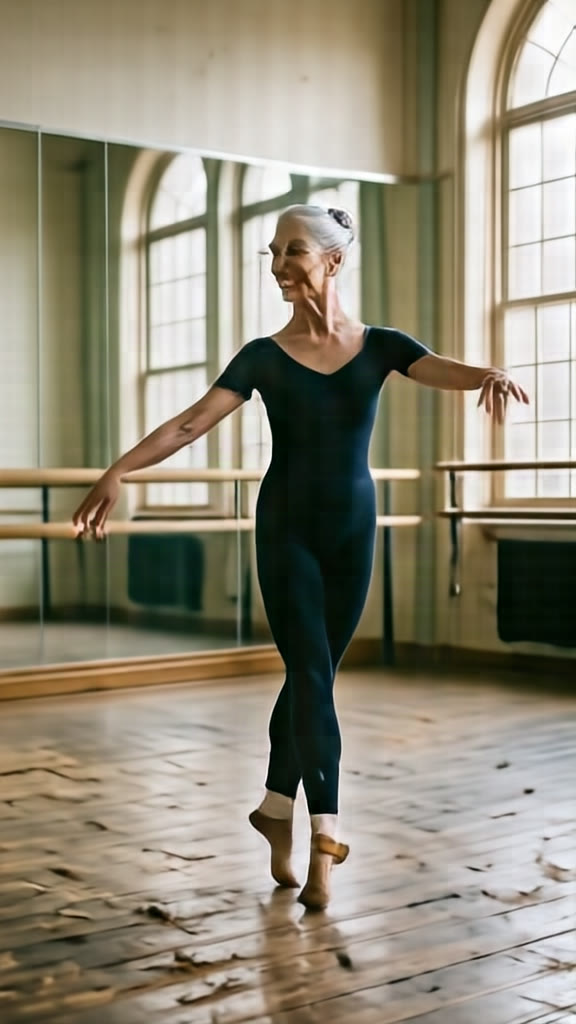
Background Removal kept our gym-goer and his shaker as one cut-out, and the dancer's bun and fingers came through.
Bria · by Bria AI
Bria AI trains its image models on licensed photos, and its editing tools do one job each: cut a person or product out of the background, erase something you name, extend a photo to a new shape, or change its light. Upload a photo in Image Studio and pick the Bria tool.


Opens in Image Studio with Background Removal picked. Sign in to run it; the price in credits shows first.
Background Removal kept our gym-goer and his shaker as one cut-out, and the dancer's bun and fingers came through.
Type what should go ("man walking in the background") and Erase by Text removes it and fills the gap. No brush needed; the Eraser takes a brush mask when you want control.
Expand grows a photo to a new shape, such as vertical to 16:9, and keeps the original pixels as they were. Our fisherman's face is untouched.
Bria trains on photos it licenses from partners such as Getty Images, and offers its own enterprise customers copyright indemnity.
Every result below was made with Bria from the photo beside it, with the settings shown, unedited. The photos are AI-generated people.
BeforeAfterBackground Removal (RMBG 2.0), no settings. Transparent PNG.
 Before
 After
Background Removal (RMBG 2.0), no settings. Transparent PNG.
 Before
 After
Erase by Text, object: "man walking in the background".
 Before
 After
Erase by Text, object: "red road sign".
 Before
 After
Relight, direction: front, light: blue hour light.
 Before
 After
Relight, direction: side, light: low-angle sunlight. The change is gentle.
 Before
 After
Expand to 16:9, prompt: "the stone harbour wall and calm grey sea at dawn, small boats moored".
Start here
Cut-outs of people and products
One click to a transparent PNG. Start here.
4 credits per image
Open with Background RemovalOption 2
Removing one thing you can name
Type the object; no mask needed.
8 credits per image
Open with Erase by TextOption 3
Removing exactly what you paint
Brush over the area and it fills the gap from the surroundings.
8 credits per image
Open with EraserOption 4
A new shape for the same photo
Vertical to wide, or square to tall, with the original kept sharp.
8 credits per image
Open with ExpandOption 5
Changing the light or time of day
Pick a direction and a look, from midday to moonlight.
8 credits per image
Open with RelightEach tool has its own tab in Image Studio, alongside other erase, expand and relight models. Credits are read from the live catalog; the Standard plan ($24/month) includes 2,000 credits, about 500 Background Removal images.
Upload a JPG, PNG or WebP, or send an image from one of your results.
Name the object to erase, choose the new shape, or pick a light direction and look.
The credit price shows before anything is spent.
Zoom in on hair, hands and the filled area before you use the result.
Remove a background, erase an object by naming it or painting over it, expand a photo to a new shape, and relight it.
Yes: it keeps what the person holds, like the shaker in our example. Check thin edges and gaps before you use the cut-out.
Bria says its models are trained only on licensed images from data partners. Its copyright indemnity applies to Bria's own enterprise customers, not to Affogato users.
Bria publishes some model weights, such as RMBG 2.0, under a non-commercial licence. On Affogato you use them through the studio under our terms.
No. Each run costs credits, shown before you start. Credits come with a monthly plan and unused credits roll over up to the plan's cap.
Yes, on paid Affogato plans, subject to our terms of service and the model provider's terms (Bria). You need the rights to anything you upload, such as photos, faces, voices or brand assets. Read our terms of service.
Facts checked November 15, 2026. Sources: Bria: RMBG 2.0 on Hugging Face · Bria: FIBO-Edit on Hugging Face · Bria: data partners and licensing · fal: Bria Background Removal · fal: Bria Erase by Text · fal: Bria Expand · fal: Bria Relight