Tool · Erase
AI object remover
Erase removes what you don't want in a photo (a stranger, a sign, a bin, a scooter) and fills the space from the scene around it. Paint over it, draw a box, or type what it is. The person you meant to photograph stays as they were.
Name it, box it or brush it
- Upload a photo, or send one from a result tile.
- Brush over the object, drag a box around it, or type what it is.
- Erase. The gap is filled from the scene around it.
Sign in to run it. The price shows before you erase.
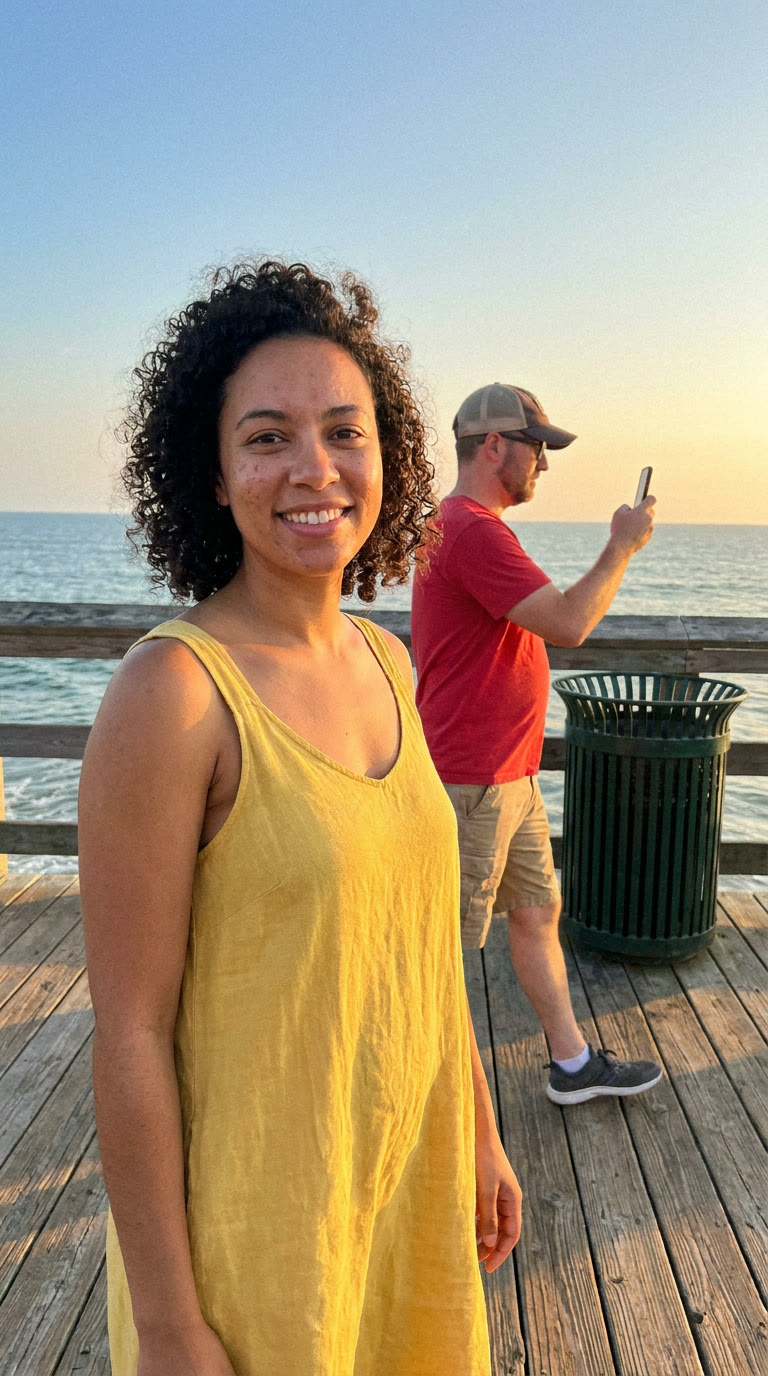

A photobomber, removed by name
01 Original
Woman in a yellow sundress on a boardwalk, a tourist in a red t-shirt walking behind her
02 Erased
The same photo with the tourist removed and the boardwalk and sea filled in
03 What changed
Typed: "the man in the red t-shirt and cap". Bria Erase by Text removed him and his shadow and rebuilt the railing, sea and boards behind. Her face, dress and the light are untouched.
Unedited output.
Bria Erase by Text, one run, unedited. The people in every example on this page are AI-generated.
How do you remove an object from a photo with AI?
Open Erase in Image Studio and upload the photo. Then tell it what to remove in one of three ways: paint over it with the brush, drag a box around it, or type what it is ("the two people in the background"). Click Erase. The model removes the object and paints the background back in from what surrounds it.
Describe is the fastest for people and obvious objects. Use the brush when the object is small or tangled with something you want to keep, and the box when you want shadows and reflections to go with it.
Want to replace it with something else? Use the AI photo editor →
What it does
- Three ways to say what goes
- Paint it, box it or name it. Describe needs no mask at all: type "the man in the red shirt".
- Fills from the scene
- The gap is painted from what surrounds it: sand, sea, cobbles, a wall, a doorway.
- Shadows go too
- Finegrain's box mode removes the object's shadow and reflection with it.
- The subject is untouched
- Only the marked area changes. Faces, clothes and the light on them stay as they were.
More objects, erased
Each pair is the original and one run of the eraser named under it. Nothing was retouched afterwards.
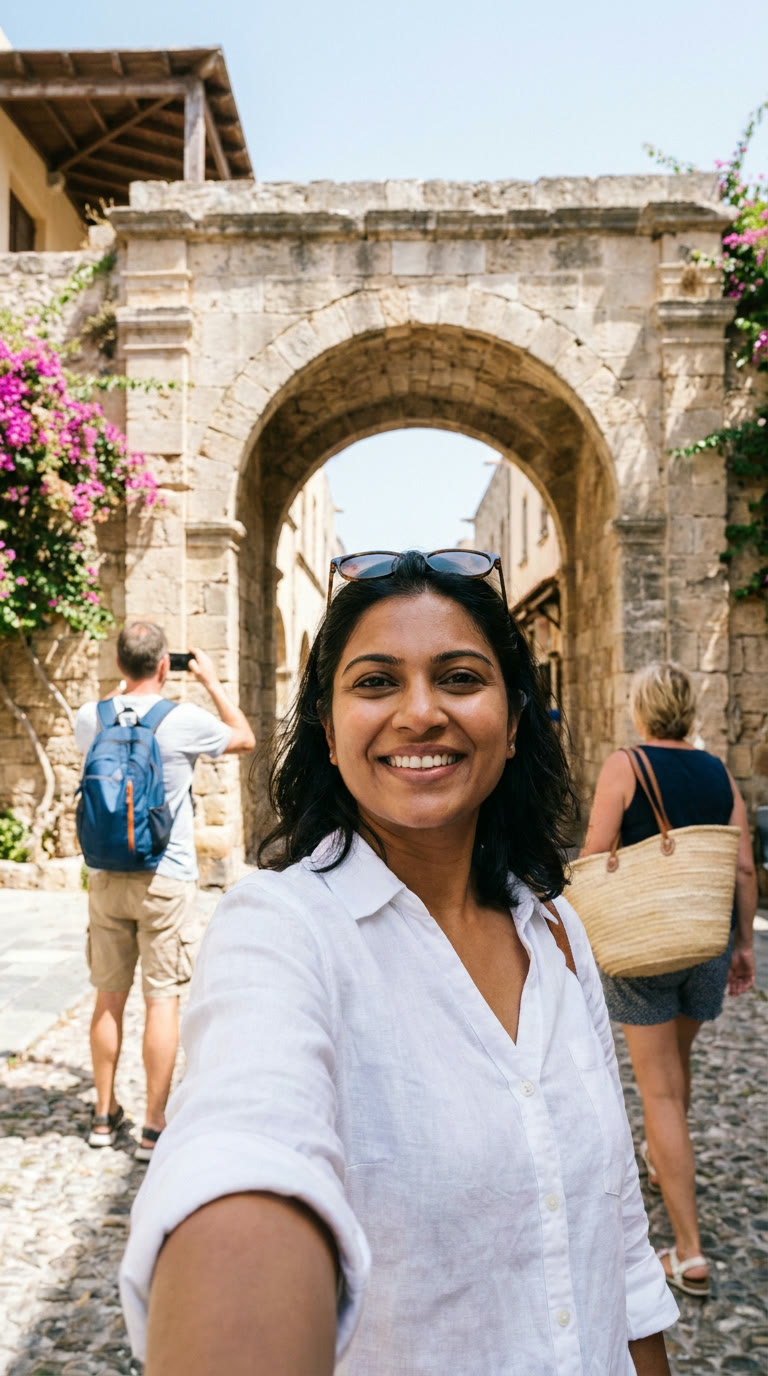 Original
 Erased
Two strangers out of a travel selfie
 Original
 Cone erased
 Scooter erased
A traffic cone, then a scooter
How to remove an object from a photo
- 01
Upload the photo
Open Image Studio, pick Retouch, then Erase. Upload a JPG, PNG or WebP, or use Send to on any image you made.
Phone photo in HEIC? Export it as JPG first.
- 02
Mark what to remove
Brush: paint over it. Box: drag a rectangle around it. Describe: type what it is, like "the bin on the left".
Two things to remove? Name both, or erase one, then the other.
- 03
Erase and download
Click Erase. The result lands next to the original so you can compare, then download or keep editing.
A trace left behind? Brush over just that spot and erase again.
The five erasers
Each mode runs a different model. Describe and Box need no painting; Brush gives you the most control.
| Model | Best at | Credits |
|---|---|---|
| Bria Erase by Text | Describe: type what to remove, no mask | 8 per image |
| Finegrain Eraser | Box: removes the object with its shadow and reflection | 36 per image |
| Bria Eraser | Brush: fills the painted area from its surroundings | 8 per image |
| FLUX.1 [pro] Erase | Brush: repaints larger areas to match the scene | 9 per image |
| Ideogram Object Removal | Brush: low-cost cleanup of small objects | 6 per image |
Where it's used
Tips
- Name the object plainly: "the man in the red t-shirt", not "the distraction".
- Draw the box a little larger than the object so its shadow is inside.
- For one object touching another, brush over only the part you want gone.
- Erase first, then upscale. The upscaler sharpens the filled area too.
What is an AI object remover?
An AI object remover deletes part of a photo and invents what was behind it. You mark the object; the model removes those pixels and fills the hole with background that matches the light, perspective and texture around it. The old way, clone-stamping by hand, took minutes per object. This takes one click.
Affogato's Erase tool gives you five eraser models across three modes. Describe sends your words to Bria Erase by Text. Box sends a rectangle to Finegrain, which also takes the shadow and reflection. Brush sends a painted mask to Bria Eraser, FLUX.1 [pro] Erase or Ideogram Object Removal.
FAQ
Can it remove people from a photo?
Yes. Type who to remove ("the two people in the background") or brush over them. The examples on this page are people removed from travel and street photos.
Which mode should I use?
Describe for people and obvious objects, Box to take shadows and reflections with the object, Brush for small or awkward shapes where you want exact control.
Will it change the rest of the photo?
The area you mark is replaced; the rest is kept. Check faces and hands near the edge of the mark, and brush a smaller area if anything nearby changed.
How much does it cost?
Bria Erase by Text is 8 credits per image. Finegrain Eraser is 36 credits per image. The Standard plan is $24 a month for 2,000 credits. The price shows before you erase.

